
Video Reference :
Please follow step by step instructions as described in this document.
-
Click on Grade Tile.
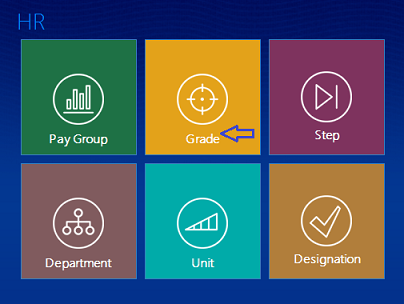
- Based on the permissions assigned from the ' Roles Tile', the user shall carry out Add, Edit, Update, Delete, Export options accordingly.
- Click on Add Button.

-
Firstly user should click on Refresh PayGroup Button.

-
User can select PayGroup from existing PayGroup.
- User should enter Grade Name and Description.
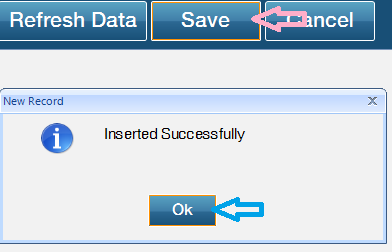
-
Click on Display Button to show the existing Grade ID, Grade Name, Grade Description, Pay Group.
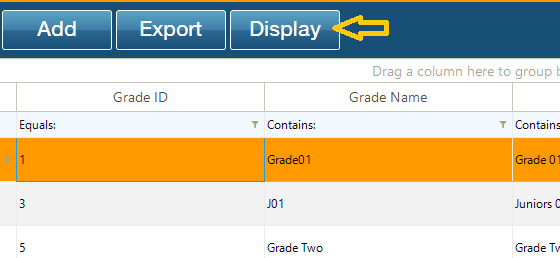
-
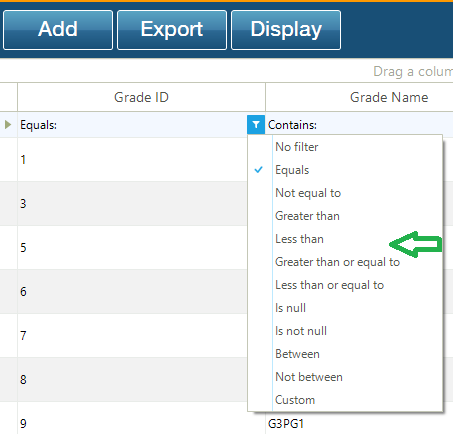
User can also select filter from the set of filters provided i.e. Starts with, Ends with, Equals, Is null etc.
-
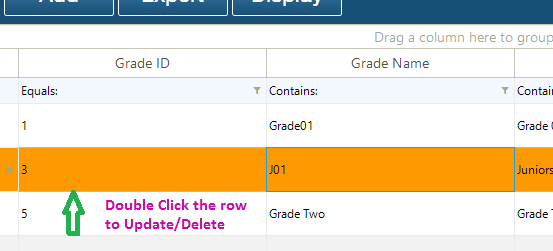
User should double click row for Updation/Deletion of that row.
-
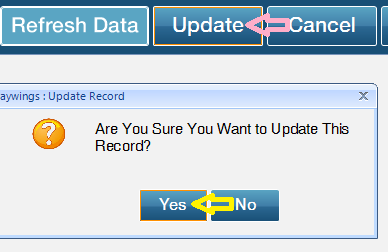
Click on Update button to enter data to be updated.
- A message pops "Are you sure you want to update this record ", Click on Yes button.
-
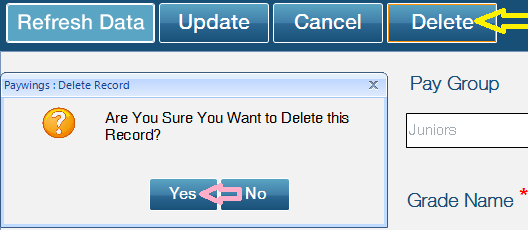
User should click on Delete button to delete record.
- A message pops "Are you sure you want to Delete This Record", click on Yes button.
-
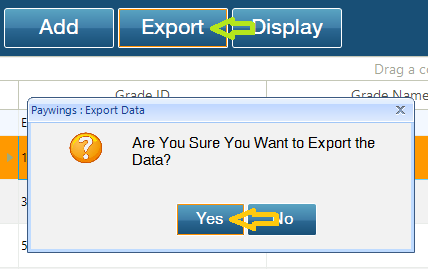
Click on Export button to export data.
- A message pops "Are you sure you want to Export the data", Click Yes to export the data.
-
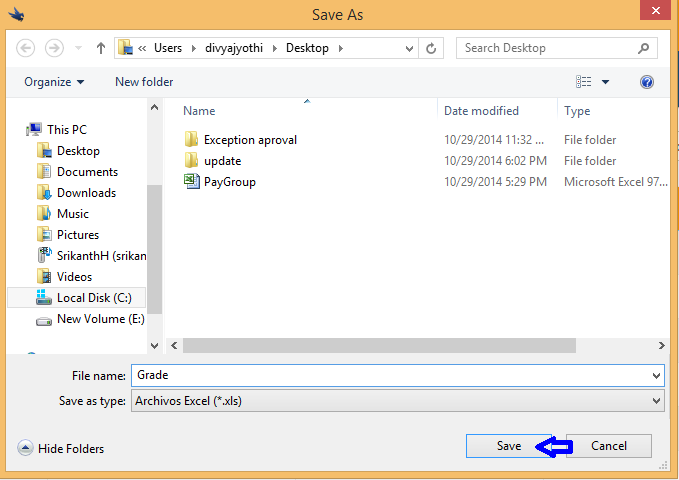
Select the location where you want to export the data.
- Click on Save Button.
-
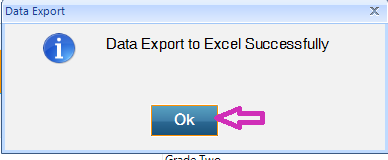
A message pops "File has been exported successfully".Click on ok button.
- Exported data is displayed in Excel Sheet.
